Blog · · Ashutosh Agarwal
Connect Matterfact to Claude
Add Matterfact to the Claude app, claude.ai, or Claude Code and search investor podcasts and pull transcripts, just by asking. A simple setup guide and FAQ.
TL;DR
- Add Matterfact as a connector inside the Claude app, claude.ai, or Claude Code, then ask about investor podcasts right in your chat
- Search a library of investor podcasts and pull full transcripts and key topics for any episode, just by asking
- Sign in once with your existing Matterfact account. Nothing new to install, no new password
What you can do
Once Matterfact is connected, you can ask Claude to do your podcast research for you, in plain English:
- Search an indexed library of investor podcasts and expert interviews.
- Pull the full transcript or the key topics for any episode.
- Get sourced answers without leaving the chat you are already in.
For example, you might ask: "Search Matterfact for recent podcast episodes about Nvidia and summarize the main debates," and Claude brings back the answer with the episodes it used.
What you'll need
- A Matterfact account. You sign in with the same login you use at app.matterfact.com.
- The Claude app (Mac or Windows), claude.ai in your browser, or Claude Code in your terminal.
Add the connector in the Claude app or claude.ai
This takes about a minute, and you only do it once.
- Open Claude (the desktop app, or claude.ai in your browser).
- Go to Customize and open the Connectors tab.
- Click + Add, then Add custom connector.
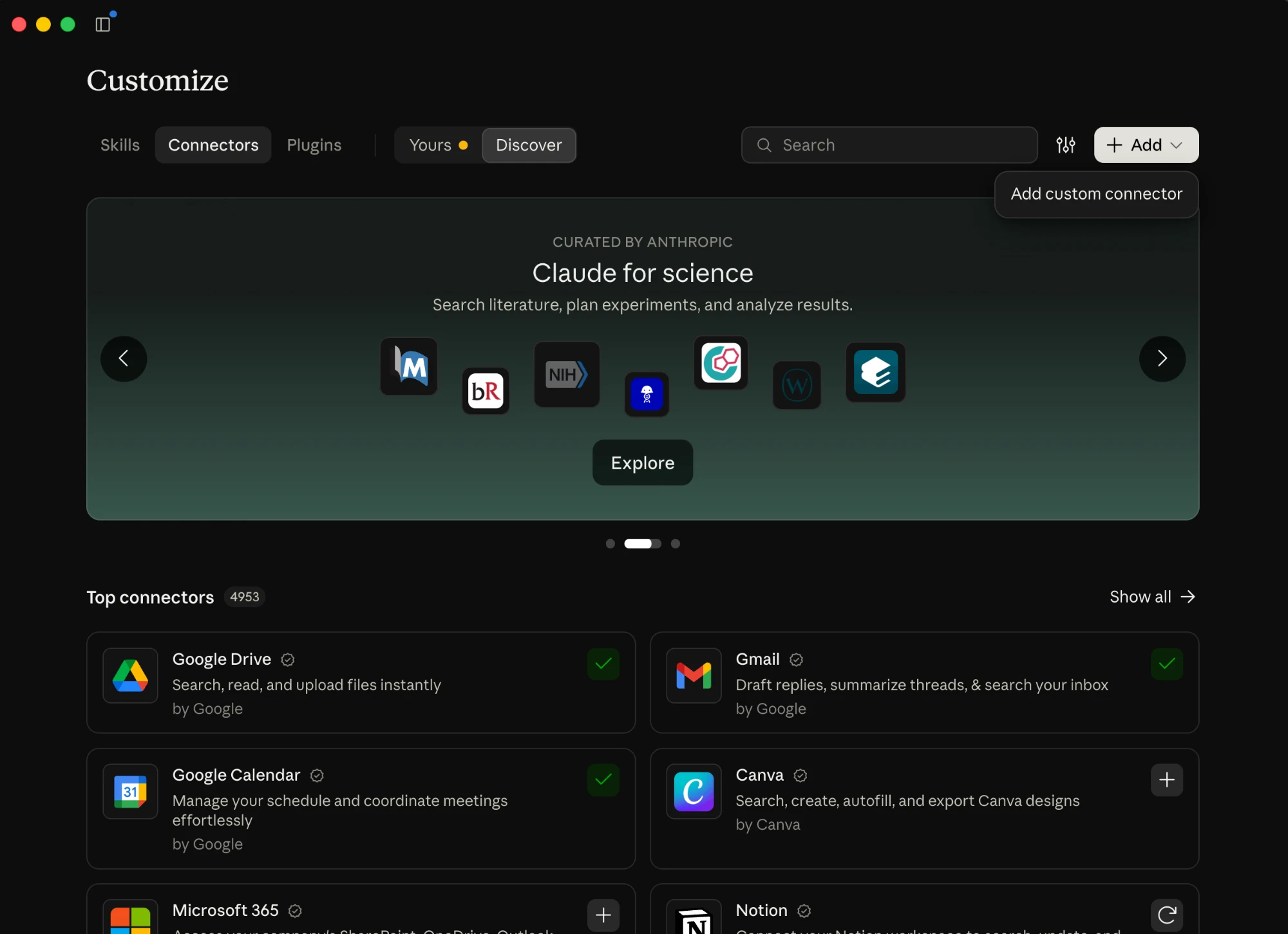
- Give the connector a name, like Matterfact podcasts, and paste the link below into the URL field.
label: Connector link
value: https://mcp.matterfact.com/mcp
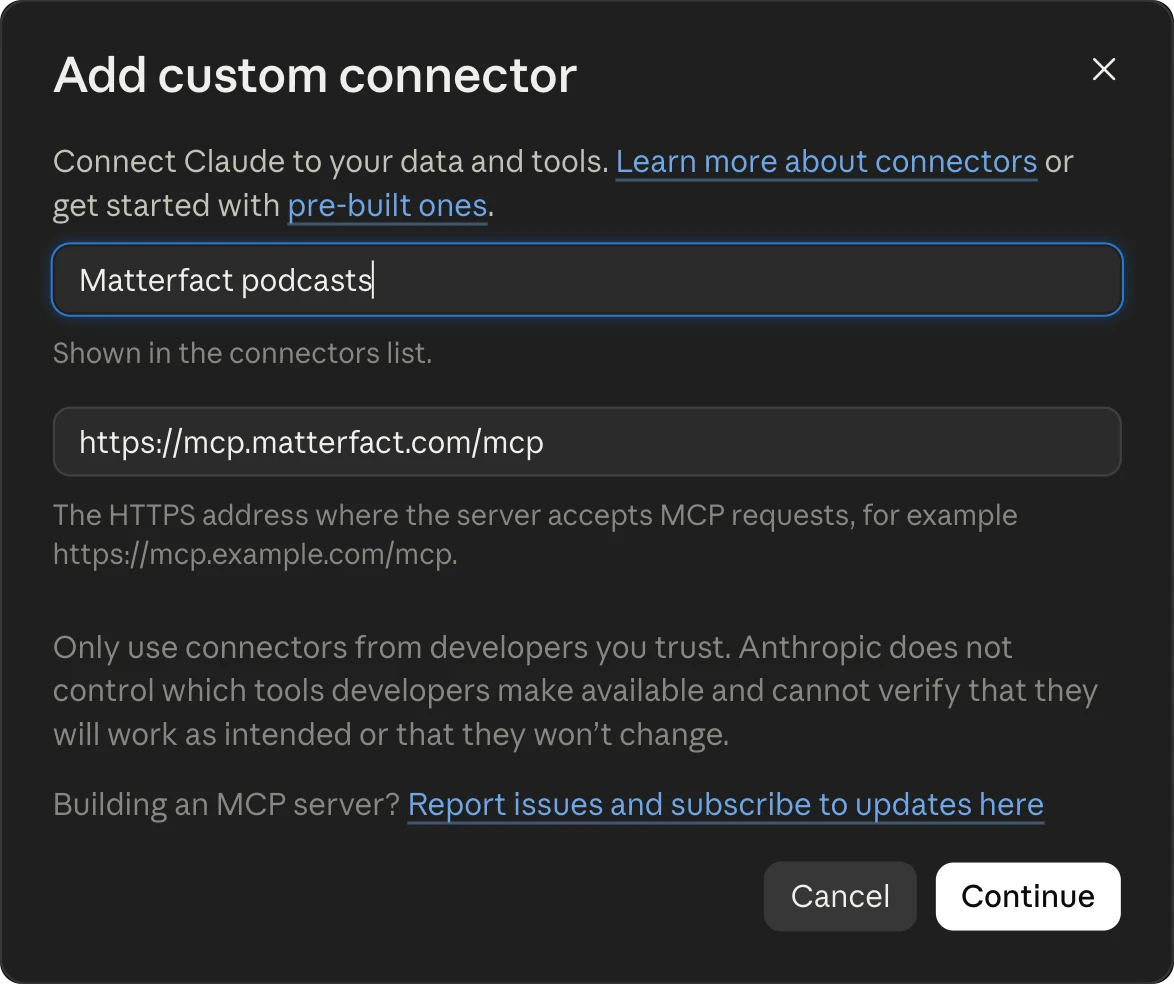
- Click Continue, then sign in with your Matterfact account when Claude asks.
That's it. Matterfact now shows up in your connectors, and you can start asking about podcasts.
On a Team or Enterprise plan, members can't add custom connectors themselves. An owner adds Matterfact once under Organization settings → Connectors, and everyone then finds it under Customize → Connectors and clicks Connect to sign in with their own account.
Add the connector in Claude Code
If you live in the terminal, Claude Code can reach the same podcast corpus. The setup is one command plus a sign-in, and because the server is hosted by us, there is nothing to install or run locally.
- In any terminal, register the connector once:
label: Terminal command
value: claude mcp add --scope user --transport http matterfact https://mcp.matterfact.com/mcp
The --scope user flag makes Matterfact available in every project on your machine, not just the folder you happen to be in. Leave it off if you only want it in the current project.
- Start a session by running
claude, then type/mcpto open the connector panel. - Select matterfact, choose Authenticate, and sign in with your Matterfact account when the browser opens.
- Back in the terminal, the status flips to Connected. You can confirm any time with
/mcpinside a session, orclaude mcp listoutside one.
Now ask away, right in the middle of whatever you were doing: "Search Matterfact for recent podcast episodes on semiconductor capex and pull the transcript of the most contrarian one." Claude Code calls the connector and brings back sourced answers without you switching windows.
If you ever want to remove it, run claude mcp remove matterfact.
FAQ
Why am I asked to sign in? The connector links to your existing Matterfact account, so your podcasts stay tied to you. You sign in once; Claude remembers the connection, not your password.
I don't see podcast results. Your Matterfact account needs access to that product. Reach out and we will get you set up.
Is my data sent anywhere new? No. The connector reads the same Matterfact data you already use, and Claude only sees it on your behalf with your permissions.
Do I need Node or anything else installed for Claude Code? No. The Matterfact connector is a hosted server, so Claude Code just talks to it over the network. The one command above is the whole setup.
Need help? Email support@matterfact.com.